
Bricks Builder Integration
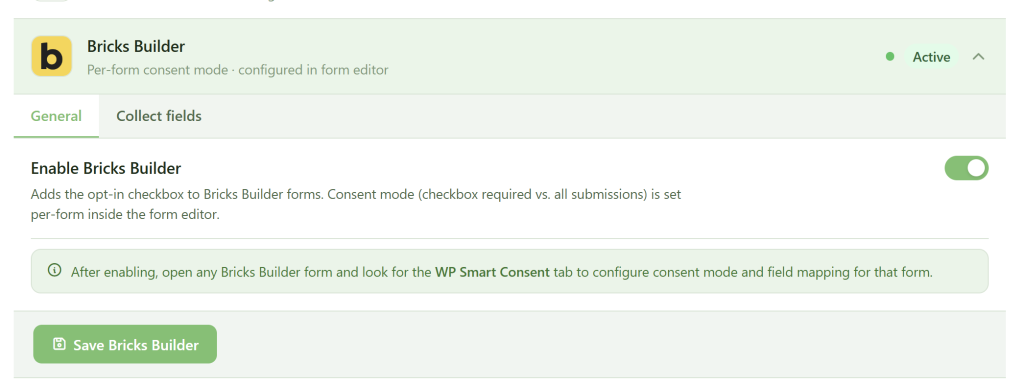
WP Smart Consent integrates with the Bricks Builder Form element as a form action. You select WP Smart Consent under the form’s Actions, configure it right in the Bricks editor, and a consent checkbox is added to the form for you.
Enabling Bricks#
Bricks is enabled like any other form integration:
- In WP Smart Consent, open the Form integrations screen.
- Turn on Bricks Builder.
- Save.
Once enabled, WP Smart Consent becomes available inside the Bricks form editor.
Adding WP Smart Consent to a form#
Bricks’ form element runs one or more actions after a successful submission (Email, Webhook, Mailchimp, and so on). WP Smart Consent adds itself as one of these actions:
- Edit the form in the Bricks builder and select the Form element.
- Open the Actions control (Actions after successful form submit).
- Add WP Smart Consent to the list.
- Configure the WP Smart Consent settings that appear (see below).
- Save the form. Saving is what adds the consent checkbox to the form — see Consent checkbox below.
You can keep other actions (such as Email) selected alongside WP Smart Consent; each action runs independently.
Form type#
The Form type setting controls when a submission is forwarded to your CRM destinations:
- Contact — forward only when ticked. The submission is forwarded only when the visitor ticks the consent checkbox. Submissions left unticked are still recorded in your dashboard logs (with consent marked as not given) but are not forwarded.
- Newsletter — forward every submission. Every successful submission is treated as an opt-in and forwarded automatically.
Consent checkbox#
By default, Auto-add consent checkbox is on. When you save the form, WP Smart Consent adds a consent checkbox as the last field, before the submit button, using your Consent text.
Because Bricks validates every submitted field against the form’s saved fields, the checkbox is written into the form when you save it in the builder — so you must save the form after selecting the WP Smart Consent action for the checkbox to appear on the front end. If you later remove the action and save, the checkbox is removed again.
You can edit the Consent text shown next to the checkbox at any time; save the form to apply the change.
Collect fields#
Map your form’s fields to standard WP Smart Consent data fields. Bricks identifies each field by its field ID, shown on the field in the builder. Enter that ID (without any prefix) into the matching box:
- Email field ID — required.
- First name, Last name, Phone, Company, Country — all optional.
At submission time, WP Smart Consent reads each mapped field’s value by its ID. If the email mapping is empty or the submitted email is invalid, the submission is skipped (and, with debugging enabled, noted in the log).
Extra fields#
The Extra fields section maps any additional Bricks field to a custom CRM key. Add a row, enter the Form field ID on the left and the CRM key on the right. Each mapped value is sent alongside the standard contact data on every opt-in and recorded with the submission.
CRM overrides#
The CRM overrides section lets you override list IDs and tags per CRM for this specific form. Add a row, then enter the CRM slug (for example, mailchimp), comma-separated List IDs, and comma-separated Tags. These values take precedence over the global settings for that CRM when this form is submitted.
How submissions are captured#
WP Smart Consent hooks Bricks’ custom form action, which fires after a form is submitted successfully. It reads the form’s settings and submitted field values, resolves the consent state, records the submission in the WP Smart Consent dashboard under the bricks source, and — when consent was given — forwards the contact to your connected CRMs and webhooks.
Troubleshooting#
“An error occurred, please try again later.” on submit — this is Bricks’ message when a submitted field isn’t recognized. It usually means the form wasn’t saved after enabling WP Smart Consent. Open the form in the builder and save it so the consent checkbox is written into the form, then try again.
WP Smart Consent isn’t in the Actions dropdown — confirm Bricks Builder is enabled on the WP Smart Consent Form integrations screen, then reload the Bricks builder.
The consent checkbox doesn’t appear on the form — make sure Auto-add consent checkbox is on and that you saved the form in the builder after selecting the action.
Submissions aren’t logged, or the email is blank — check that the Email field ID matches your form field’s ID exactly (as shown on the field in the builder). Enabling WP_DEBUG_LOG will surface a [WP Smart Consent] Bricks … line describing what happened on submit.
Wrong field values forwarded — Bricks fields are identified by ID. If a field’s ID changed in the builder, update the mapping in the WP Smart Consent action settings to match.